ONE STOP SOLUTION FOR YOUR PRINTER QUERIES
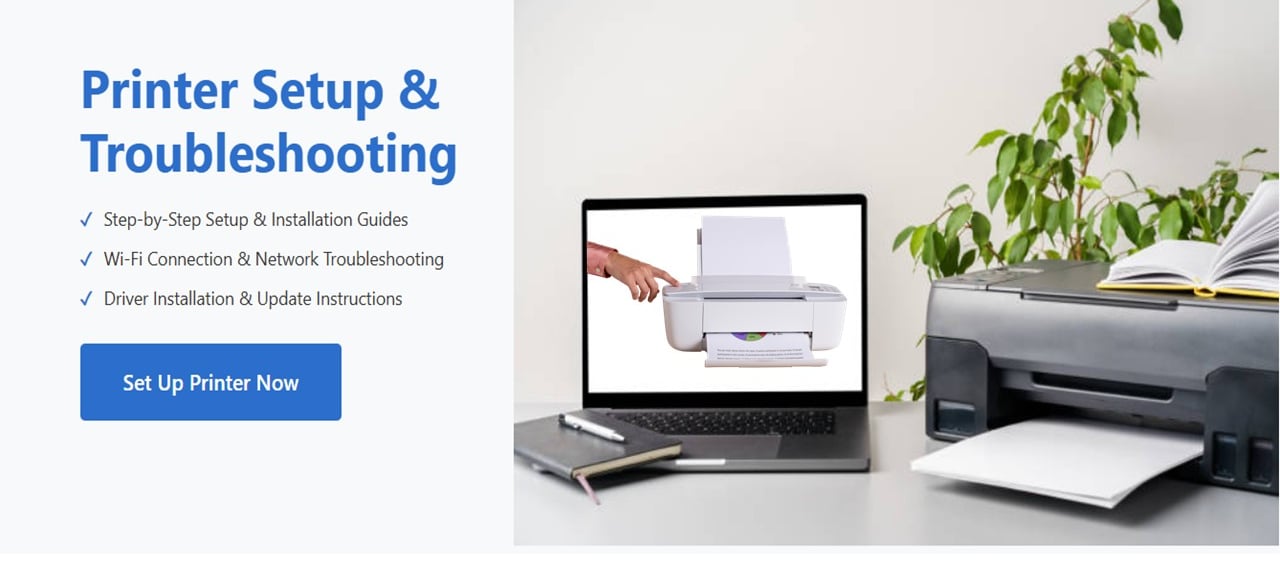
Simple steps to get your printer working again.
If your printer isn’t working, start by checking that it’s turned on and properly connected to your computer or Wi-Fi network. Restart both the printer and your device, as this often fixes minor glitches. Make sure the correct printer is set as the default and clear any stuck print jobs from the queue, since they can block new tasks. Check that the printer has enough paper and ink or toner, and ensure there are no paper jams. If the issue continues, reconnect the printer to Wi-Fi or update its drivers from trusted brands like HP, Canon, or Epson. Finally, running the system’s printer troubleshooter or restarting the print spooler service can help resolve deeper issues and get your printer working again.


Check Power
Ensure your printer is plugged in and turned on.


Clear Errors
Follow on-screen prompts to resolve printer errors.


Install Drivers
Download and install the latest printer software.
Test Print
Print a test page to confirm everything works.